How to Create a List
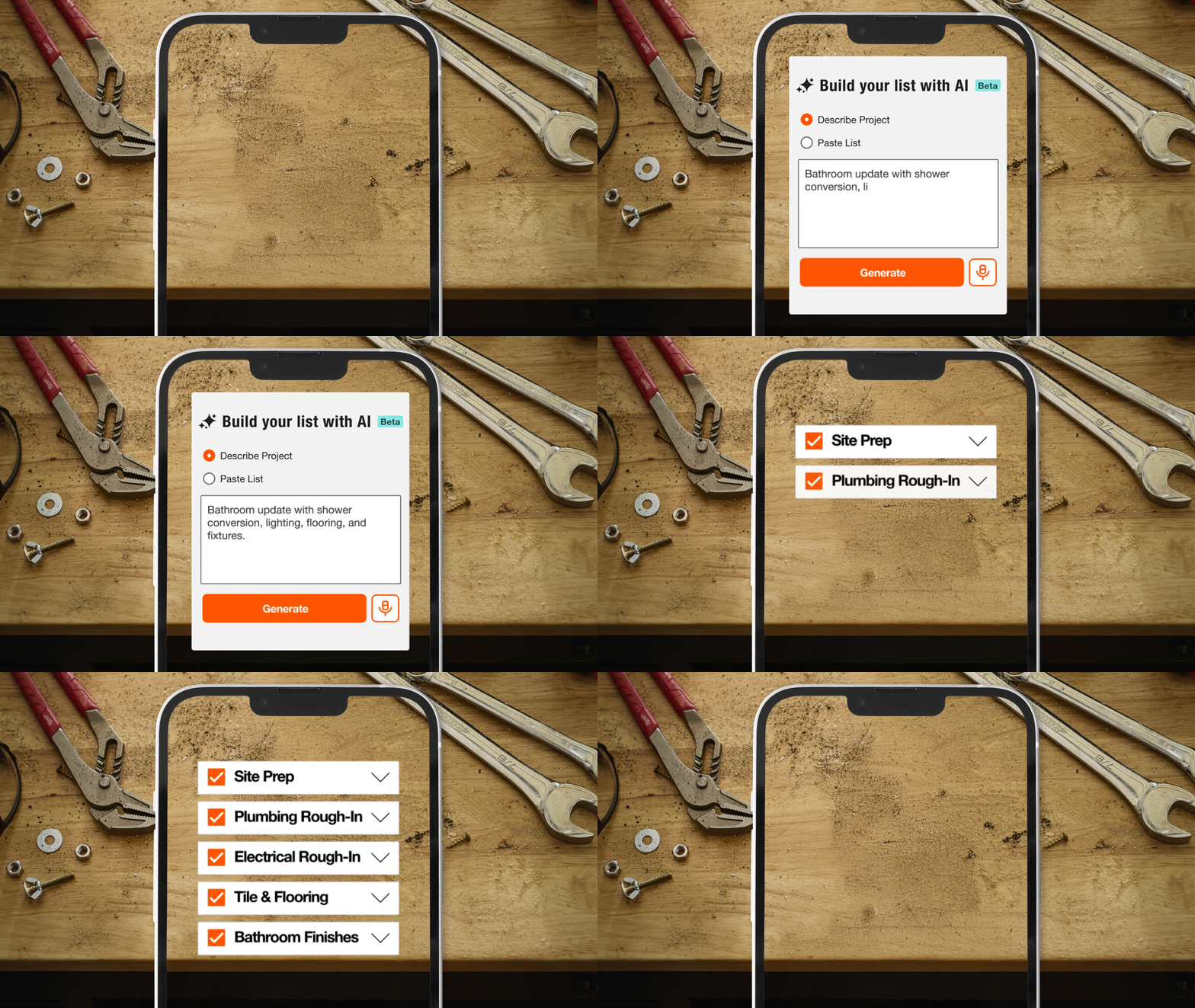

Presenting: AI Material List Builder
A new way to build Project Lists at the speed of AI. Watch how the tool can help you estimate faster, bid smarter and organize materials more efficiently.
Frequently Asked Questions
Lists help you stay organized and keep your team in-the-know. House the products, materials and tools important to your project in one place. This makes finding the things you frequently use faster and team collaboration convenient. Its AI features allow you to add items quick, lowering your time to bid or start jobs. Move items seamlessly between Lists or add them to Projects—however you see fit. Work directly with Pro Associates, lock in pricing and manage jobs more efficiently with Lists.
Pro Xtra members can make Lists in two ways. From the Lists tool: Go to My Account, select Lists and start a new List. Then click "Add Materials" to start building your List. From a Product page: Add items directly to a List while browsing products. Once your List is created, you can edit it, share it and use it to manage your projects.
There are several ways to build your List. Add products manually as you search, copy items from an existing List or try AI. Here’s our AI tool options: • Describe Your Project: Enter text explaining your job. • Voice to Text: Verbalize your items & convert that to text. • Paste an Existing List: Copy & paste items from excel, email & more. • List Templates: Start with a pre-built List template. The AI tool will create a draft List ready for your review in minutes to accept or edit. Additional product recommendations will be provided after creation to make sure that you have all you need.
Only account administrators and purchasers can create or view Lists on your account. Invite additional collaborators for sharing. Move your List into a Project or Collaborative Quote for further collaboration with Pro Associates and to lock in pricing.
Your Lists never expire. They will remain available until you delete them. To delete a List, go to your Lists. Select the settings icon to the right of the List name, and click “Delete List” at the bottom left corner of the window. This action cannot be undone.
You can include notes on every product you add to a List. Use notes to communicate with your team, save reminders for yourself or add context for clients.
JOB MANAGEMENT JUST GOT SIMPLE
 "Product Lists")
Product Lists
Create product lists for your most-used items. Stay organized by building collections with your go-to gear.
 "Job Quotes")
Job Quotes
Track your costs & lock in Preferred Pricing to create better Quotes across your jobs.
 "A Centralized Projects Platform")
A Centralized Projects Platform
Put jobs together from planning and pricing to purchasing and performance tracking, all through one online platform.
Plan Your Project
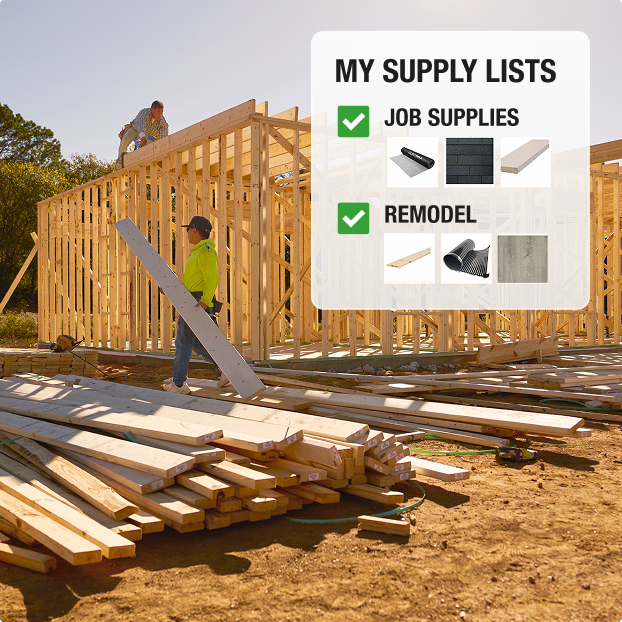
Product Lists
Save Go-To Materials
Add List Items to Projects or Quotes
Get AI-Powered Estimates
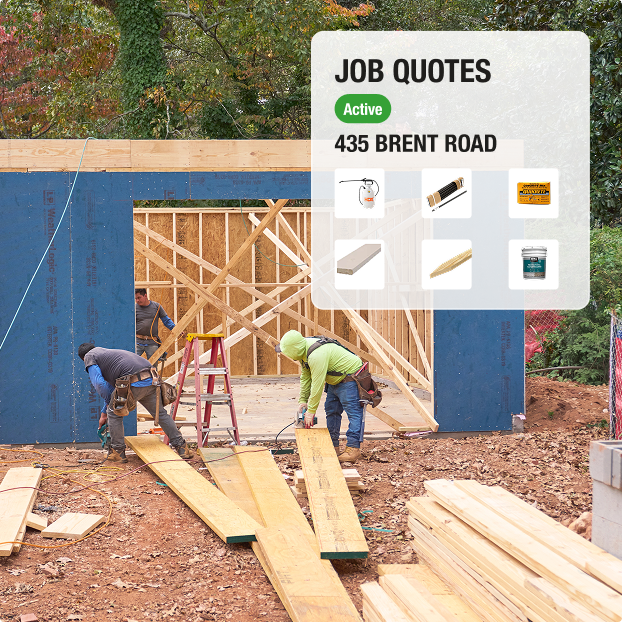
Job Quotes
Get One-Off Quotes or by Project Phase
Build Quotes Online or at The Pro Desk
Finalize Costs & Schedule Delivery
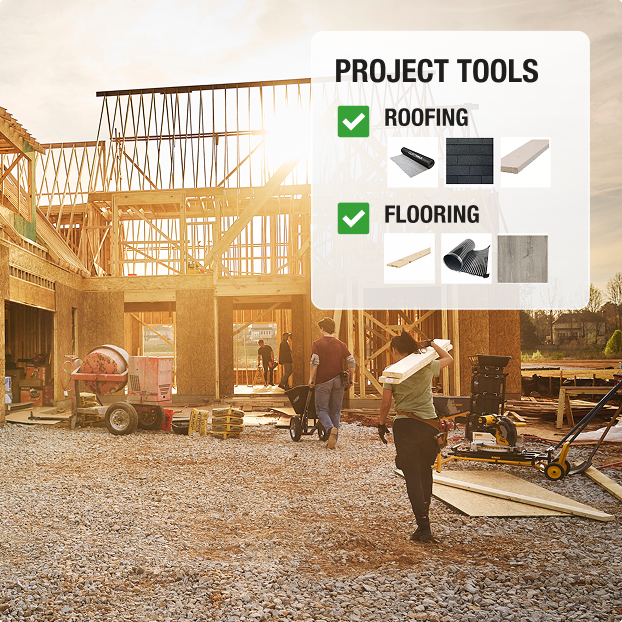
Projects Tool
Organize & Plan the Job
Collaborate with Your Team
Track Purchases
More for Pros